
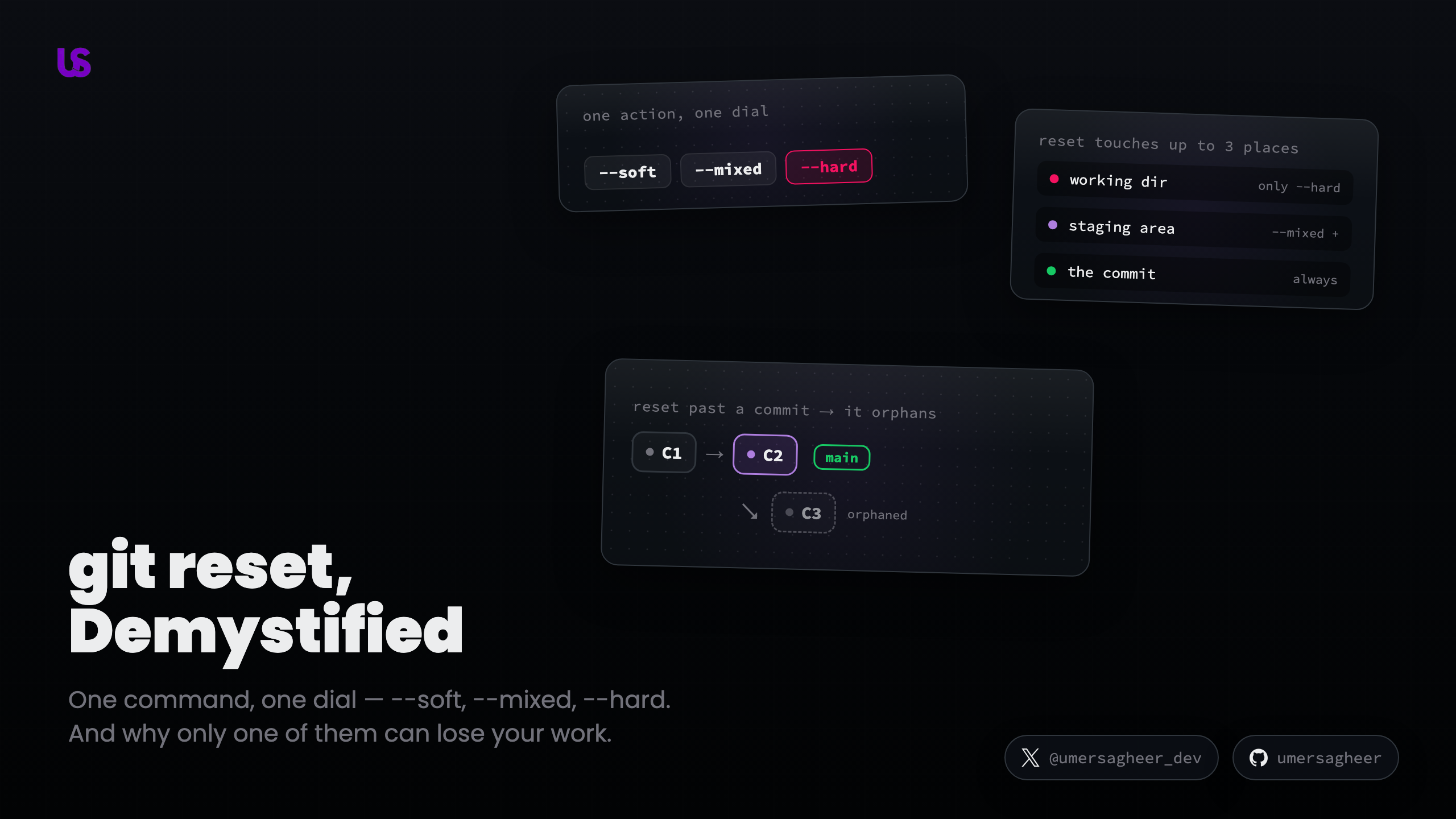
git reset, Demystified: --soft vs --mixed vs --hard




You just made three commits and realize they should really be one. Or you committed too early and want your changes back as edits, not history. Or a commit went so wrong you want to wipe it and pretend it never happened.
Those are three different problems — and they're exactly git reset --soft, --mixed,
and --hard. The trouble is --hard has a reputation for eating people's work, so most
of us learned to fear all three equally and never looked at what they actually do. But
they aren't three separate commands. They're one action with a dial.
The one idea
Here it is, and everything below is just detail: git reset moves your current branch
to point at a different commit. The flag only decides how far that change ripples.
To see the ripple, you need to know that Git keeps your work in three places at once:
- working directory — the actual files on your disk, the ones you edit.
- staging area — what you've
git add-ed, queued for the next commit. - the commit — the last snapshot your branch points at (this is
HEAD).
Start with the branch itself. When you run git reset C2, your branch pointer slides back
from C3 to C2 — and C3 doesn't get deleted, it just becomes orphaned: still sitting
in Git's object store, simply nothing pointing at it anymore. (Hold that thought — it's why
a "lost" reset is almost always recoverable.)
That pointer move is what every reset does. The three flags differ only in whether they
also drag the staging area and working directory back to match. Play with it — run a reset,
watch the branch move and C3 orphan, then flip the modes to see how far each one reaches:
The three modes, from shallow to deep
--soft moves the branch and stops there. The staging area and your files are left
exactly as they are. So the changes from the commits you just "undid" are still there,
still staged, ready to be recommitted. This is the squash trick: reset --soft back a few
commits, and everything you did is sitting staged as one big change to commit again.
--mixed (the default) moves the branch and resets the staging area. Your files are
untouched, but the staging area is emptied to match the target commit. So your changes are
still in your working directory — just no longer staged. This is what plain git reset
does, and it's the one you want when you committed too early and want to re-stage things
differently.
--hard moves the branch, resets staging, and resets your working directory. This is
the deep one: it forces your actual files back to match the target commit. Any uncommitted
change in a tracked file is overwritten and gone. This is the only mode that can lose work
you never committed.
Notice the pattern: it's not three behaviors to memorize, it's one ripple that reaches one, two, or three places.
When to reach for which
Back to the three problems we opened with — now they map cleanly:
- Squash several commits into one →
git reset --soft <target>. The pointer moves back but all your work stays staged; justgit commitagain and it's one clean commit. - "I committed too early" →
git reset --mixed <target>(or justgit reset). Your changes drop back to the working directory, unstaged, so you can re-stage and split them how you like. - "Undo the last commit but keep the code" → also
--mixed HEAD~1: it removes the commit and leaves the changes in your files. - Throw a broken commit away entirely →
git reset --hard <target>, when you're sure you want those changes gone. This is the one to double-check before you hit enter.
A good habit: reach for --soft or --mixed by default (they never lose work), and treat --hard
as the deliberate "I really mean it" option.
So which one actually loses work?
Only --hard, and only for uncommitted changes — and here's the subtlety most people miss:
--hard takes both your staged and unstaged changes. --mixed keeps them (just unstages), and
--soft keeps them staged. Try it in the demo above: hit Modify files, stage one and leave
one unstaged, then run each mode. Under --soft and --mixed both files survive; under --hard
both are overwritten. That's the whole danger, and now you can see exactly when it bites.
And here's the reassuring part most people don't know: the commits you reset past aren't
deleted. In the demo, once you commit again, C3 looks stranded — and it is, in one specific
sense. Every commit points only to its parent, never its children, so walking back from the
new C4 reaches C2 and C1 but never C3. Nothing points to C3, so it's unreachable
through the history.
Unreachable isn't gone, though. C3 is still sitting right there in the object store. If you
know its hash, git checkout <hash> drops you straight onto it (in "detached HEAD" — you're on
a commit, not a branch), and you could git branch rescue there to save it for good. That's
exactly the escape hatch git reflog automates: it remembers where your branch used to point,
so you can jump back even after a reset. (Both get their own posts in this series.)
The one thing reflog can't bring back is uncommitted work destroyed by --hard — because it
was never a commit in the first place. The lesson writes itself: commit early, and reset holds
no fear.
Further reading
- Git, Under the Hood — the full picture: how commits, branches, and the staging area actually work, with interactive demos. If the "branch is a pointer" idea is new, start here.
